Remove Watermark from Video Without Blur
Why blur-based watermark removal looks terrible — and how AI reconstruction removes watermarks cleanly, with no blur, no artifacts, and no quality loss.
The Problem with Blur-Based Watermark Removal
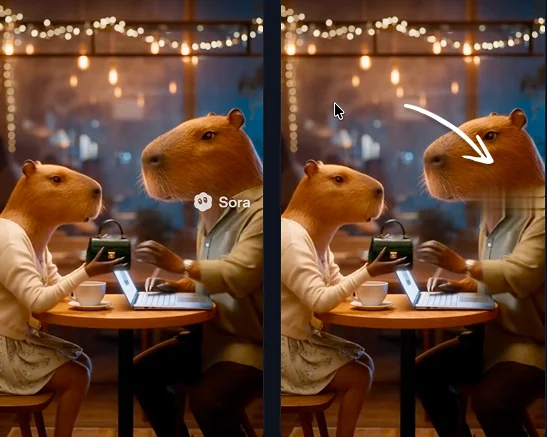
The most widely available 'free' method for removing watermarks from video is applying a blur, mosaic, or solid color block over the watermark region. This approach is technically easy — almost every video editor supports it — but the result is immediately obvious to anyone watching the video.
A blurred patch over a watermark draws *more* attention to the area than the original watermark did. It signals that something has been edited out, which looks unprofessional for ad creative, client videos, or social media content. For marketing teams, agencies, and content creators who need broadcast-quality output, blur-based removal simply doesn't meet the standard.
There is also a practical problem: many AI-generated video watermarks (Sora, Veo) rotate between multiple positions across the frame. To cover all positions with blur, you'd need to apply multiple overlapping blur regions, making the problem even more visually obvious.
How AI Reconstruction Removes Watermarks Without Blur
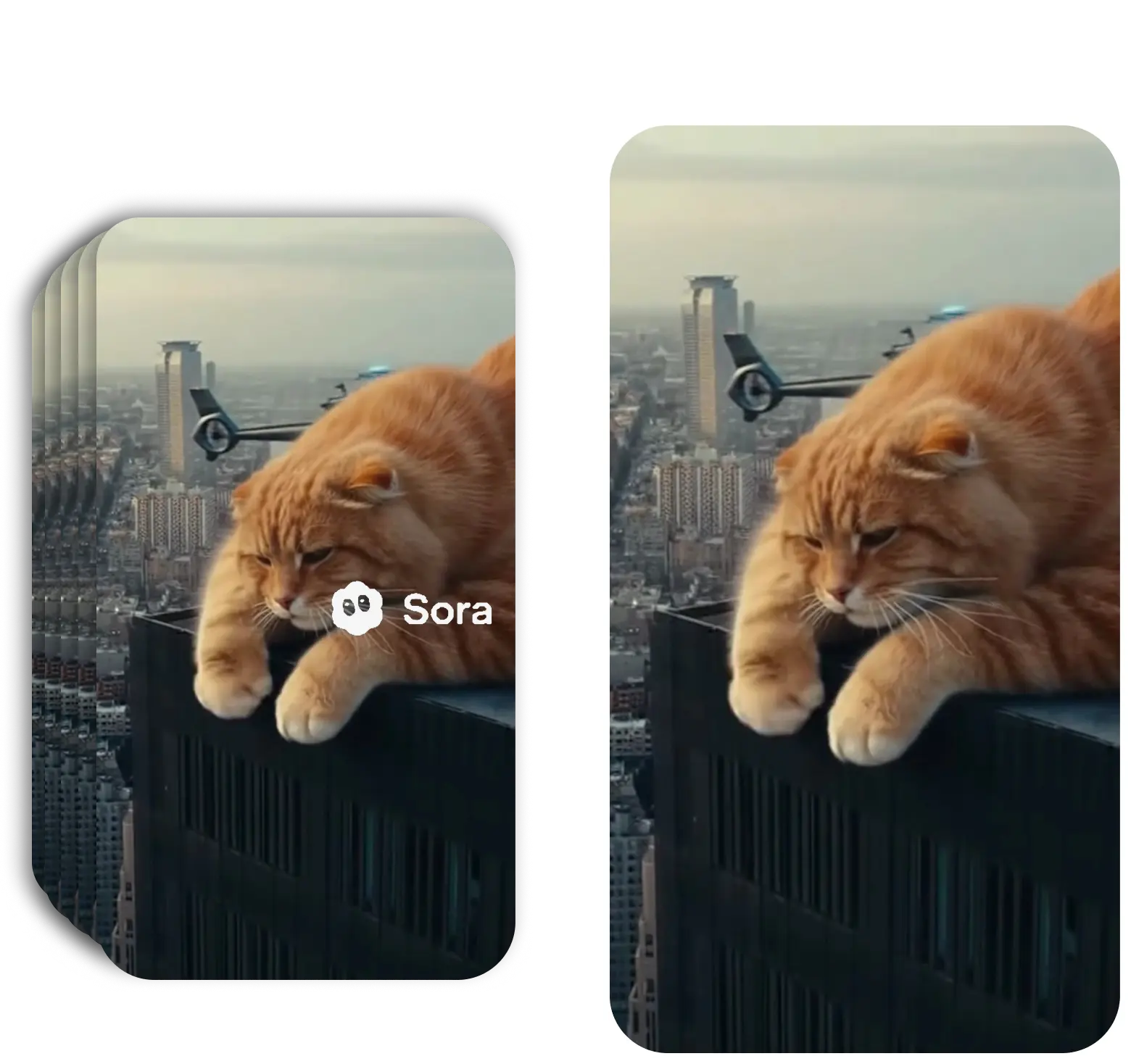
AI inpainting is the technology behind blur-free watermark removal. Originally developed for photo restoration, modern video inpainting models can reconstruct missing or covered regions of a video frame by analyzing surrounding context.
The process works in three stages: 1. Detection — the AI identifies the exact watermark region (position, shape, opacity) in each frame. 2. Temporal analysis — for video, the model analyzes adjacent frames to understand motion vectors, lighting changes, and what content should naturally appear in the masked region. 3. Reconstruction — the model generates new pixel data that matches the surrounding scene's texture, color, motion blur, and grain — filling the watermark region with a seamless continuation of the background.
The result is indistinguishable from a video that never had a watermark. No blur, no color patch, no edge seam — just the original scene as it would have appeared without the overlay.
Blur Method vs AI Reconstruction — Side by Side
Blur / Mosaic method: Covers watermark with averaged pixels. Result is an obvious blurred patch. Doesn't reconstruct underlying content. Looks unprofessional. Free in most editors. Works in seconds. Not suitable for commercial use.
Crop method: Removes the watermark by cutting the frame edge. Permanently loses video content. Changes aspect ratio. Only works for edge-positioned watermarks. Free but destructive.
AI reconstruction method: Rebuilds content underneath the watermark using machine learning. Result is visually identical to a watermark-free original. No visible patch or artifact. Preserves full frame and original quality. Requires cloud processing. Suitable for all professional use cases.
Free Tool (Blur) vs PRO Tool (No Blur) — Side by Side
The Free tool covers watermarks with blur. The PRO tool reconstructs the content underneath — no blur, ever.
Video Watermark Remover Free
Manual tool — you draw masks over the watermark and the tool fills the area with a blur. Best for quick edits where appearance isn't critical.
Video Watermark Remover PRO
AI-powered cloud tool — automatically detects the watermark and reconstructs the content underneath. No blur, no artifacts, professional quality.
Not sure which to choose? Use the Free tool for personal testing. f for ads, client work, or any content that needs to look professional.
Remove Watermark Without Blur — 3 Steps
AI reconstruction for a professional, artifact-free result
Upload Your Video
Upload your video to SorryWatermark PRO. Supports any format — MP4, MOV, WebM. Single file or batch upload for multiple videos.
AI Reconstructs — No Blur
Our AI detects the watermark and rebuilds the content underneath it frame by frame. No blur, no color block — pure AI reconstruction of the original pixels.
Download Clean Video
Download your watermark-free video with zero visible patches or blurring. The output matches your original video quality exactly.
When Does AI Watermark Removal Work Best?
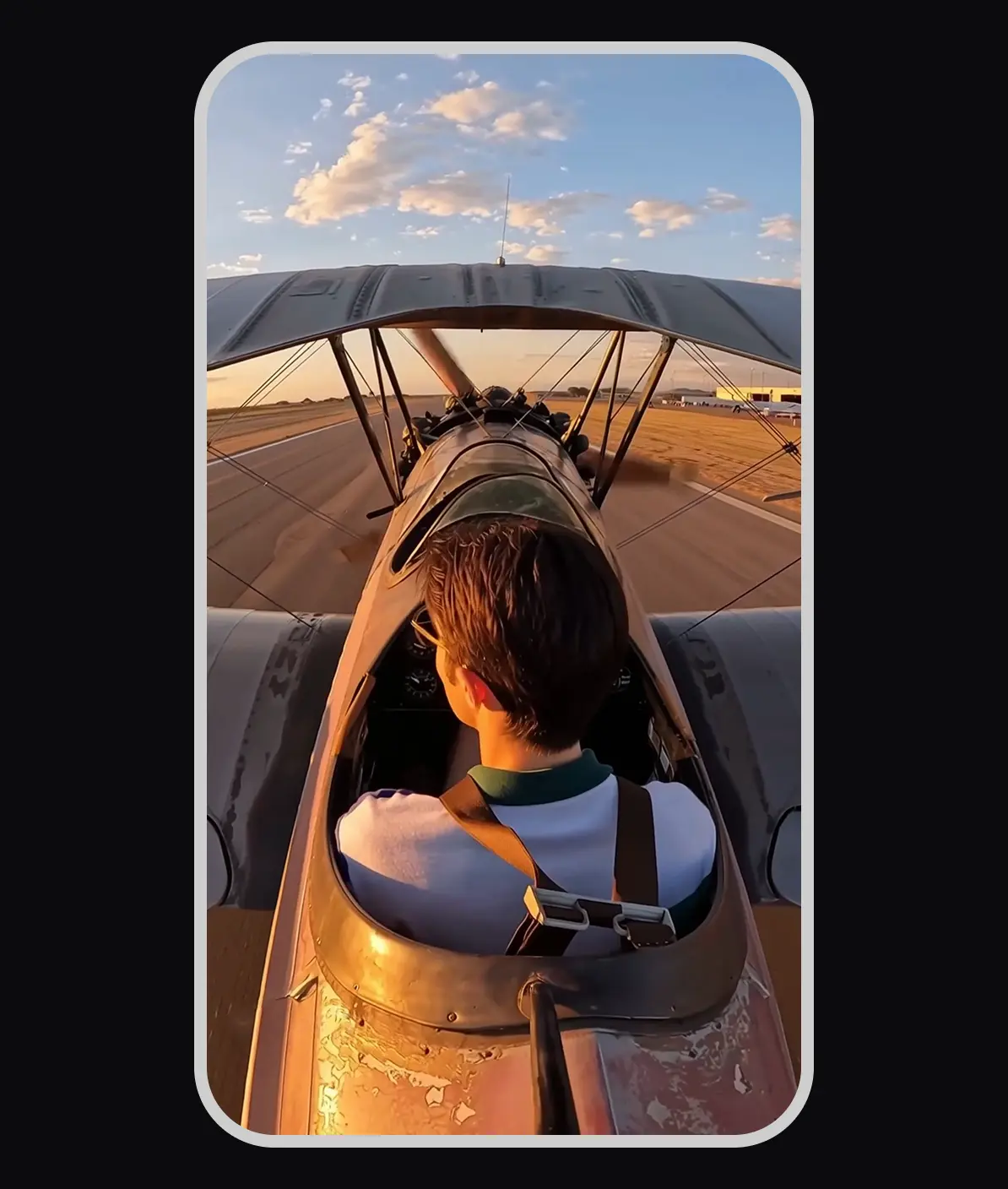
AI reconstruction performs best when the watermark covers uniform or low-detail background regions — clear sky, walls, smooth surfaces, or solid-color backgrounds. In these cases, the AI has an easy reconstruction task and the result is virtually perfect.
More challenging cases include watermarks over faces, crowds, fast-moving objects, or highly detailed textures. In these scenarios, the AI still produces far better results than blur — but the reconstruction may not be 100% perfect under close inspection. For most real-world use cases (social media, ads, client videos), the result is indistinguishable from the original.
Moving watermarks (like Sora or Veo branding that shifts position every few seconds) are handled well by video-aware AI models that track the watermark across frames and apply consistent reconstruction throughout. Static corner logos on stock footage are the easiest case.
Frequently Asked Questions
Everything about removing watermarks from video without blur
Why do most free watermark removers create blur?
Free tools use a simple approach: they overlay a blur, mosaic, or solid fill over the watermark region. This is computationally cheap but visually obvious — the blurred patch is usually more noticeable than the original watermark. It's called 'inpainting by covering' and it makes no attempt to reconstruct the underlying content.
How does AI remove a watermark without creating blur?
AI inpainting analyzes the pixels surrounding the watermark region — including adjacent frames, motion vectors, and texture patterns — and generates a prediction of what the content underneath should look like. This prediction is filled in frame by frame, producing a seamless result that blends naturally with the surrounding scene. No blur, no visible seam.
What is the difference between blur removal and AI reconstruction?
Blur: covers the watermark area with an averaged or pixelated version of nearby pixels. The result looks like someone smeared paint over part of the video. AI reconstruction: generates new pixel data that matches the surrounding content, motion, and lighting. The result is visually indistinguishable from a watermark-free original.
Can all watermarks be removed without blur?
Most watermarks can be removed cleanly by AI. Results are best when the watermark covers a relatively uniform background (sky, walls, smooth surfaces). Watermarks over highly detailed, fast-moving, or complex scenes (faces, crowds, intricate textures) are harder to reconstruct perfectly — but still far cleaner than a blur.
Does removing a watermark without blur take longer?
AI reconstruction takes more compute than a simple blur overlay, which is why free tools default to blur. With cloud-based processing, most videos are still completed in 1–3 minutes. The quality improvement is significant — the processing time difference is minimal.
Is there a free option for blur-free watermark removal?
Our free plan provides access to the manual mask editor with basic AI removal. The PRO plan ($5.99/month) provides full AI reconstruction quality with automatic detection, batch processing, and 4K upscaling — the best no-blur result available.
Will the video look natural after AI watermark removal?
Yes — when done correctly, AI reconstruction produces results that are completely natural. The AI preserves lighting consistency, motion blur, grain, and edge detail so the reconstructed area matches the surrounding frames exactly.
Remove Watermarks Without Blur
AI reconstruction — no blur, no artifacts, no quality loss. Professional results for any video.
Try Free — No BlurLast updated: 7/16/2026 •✓ AI reconstruction, not blur • ✓ Frame-by-frame processing • ✓ Any watermark type
Related Tools
Explore our complete suite of AI video tools
Free Sora Watermark Remover
FREERemove Sora and Sora watermarks from AI videos
Sora Watermark Remover PRO
PROAdvanced AI watermark removal with best quality
AI Video Prompt Generator
Structured AI video prompts for Sora 2—styles, cinematography, templates, exports
Sora Video Generator
Generate AI videos with Sora technology
Video Watermark Remover
Remove watermarks from full videos online free
Veo Watermark Remover
Remove Google Veo logos and visible Veo watermarks
TikTok Watermark Remover Online Free
Remove TikTok logos and moving watermarks without cropping
YouTube Shorts Watermark Remover
Clean YouTube logos, Shorts marks, and channel badges
Instagram Reels Watermark Remover
Remove Reels logos, usernames, and repost overlays
Sora Watermark Remover
Dedicated remover for rotating Sora watermark patterns
Kling Video Watermark Remover
Remove Kling video logos and visible watermarks
Remove Logo from Video
Remove logos, timestamps, and text overlays from video
Remove Captions from Video
Remove burned-in captions, subtitles, and text overlays
How to Remove Watermark from Video
Free guide to remove video watermarks without blur
How to Remove Sora Watermark
Guide for Sora and Sora watermark removal
How to Remove Veo Watermark
Guide for Google Veo and Flow videos
Omni Watermark Remover
Remove Omni AI video logos and watermarks
How to Remove Omni Watermark
Step-by-step guide for Omni videos
Add Watermark to Video
Overlay a logo or text watermark on any video online