How to Remove Veo Watermark from Video
Step-by-step guide to removing the Google Veo watermark from Flow and Veo-generated videos — AI-powered, no blur, results in minutes.
What Is the Google Veo Watermark?

Google Veo is Google DeepMind's AI video generation model. Like OpenAI Sora, all videos generated by Veo — including those created through Google Flow — include a branded watermark overlay to identify the content as AI-generated. The watermark typically appears as the 'Veo' text logo and rotates between different positions across the video frame.
The Google Veo watermark is semi-transparent and appears in multiple positions throughout the clip — corners, mid-frame edges, and sometimes center. The exact placement changes at regular intervals, making it a moving watermark that can't simply be cropped out. This is why AI reconstruction tools are the only effective method to remove it cleanly.
How to Remove Veo Watermark in Google Flow
Google Flow is Google's AI creative suite built on Google's Veo video models. Every video you export from Flow includes the Veo watermark. Here's how to remove it:
1. Export from Google Flow — Generate and export your video from Flow in the highest quality available (MP4 recommended). Save the file to your device.
2. Upload to Veo Watermark Remover — Go to sorrywatermark.com/veo-watermark-remover and upload your exported Flow video. You can process a single video or upload multiple files for batch removal.
3. Automatic detection — Our AI identifies the Veo watermark in your Flow video automatically. No manual region selection is needed — the system handles rotating Veo watermark patterns natively.
4. Download clean video — Once processing is complete, download your watermark-free video. The output matches the original Flow export in quality.
Free vs PRO Veo Watermark Remover — What's the Difference?
Both tools remove the Veo watermark, but the method and quality are completely different.
Veo Watermark Remover Free
Manual tool — you draw masks over the watermark and the tool fills the area with a blur. Best for quick edits where appearance isn't critical.
Video Watermark Remover PRO
AI-powered cloud tool — automatically detects the watermark and reconstructs the content underneath. No blur, no artifacts, professional quality.
Not sure which to choose? Use the Free tool for personal testing. f for ads, client work, or any content that needs to look professional.
Remove Veo Watermark in 3 Steps
AI-powered Veo watermark removal — automatic detection, no manual work
Upload Your Veo Video
Go to sorrywatermark.com/veo-watermark-remover and upload your Google Veo or Flow export. Drag & drop or click to browse. MP4, MOV, WebM supported.
AI Detects the Veo Logo
Our AI automatically identifies the Veo watermark position, size, and opacity — covering common Google Veo watermark layouts. No manual input required.
Download Watermark-Free Video
Preview the clean result and download. Export in original quality or upscale to 4K. Processing typically takes 1–3 minutes depending on video length.
Veo Watermark Removal — AI vs Blur Methods
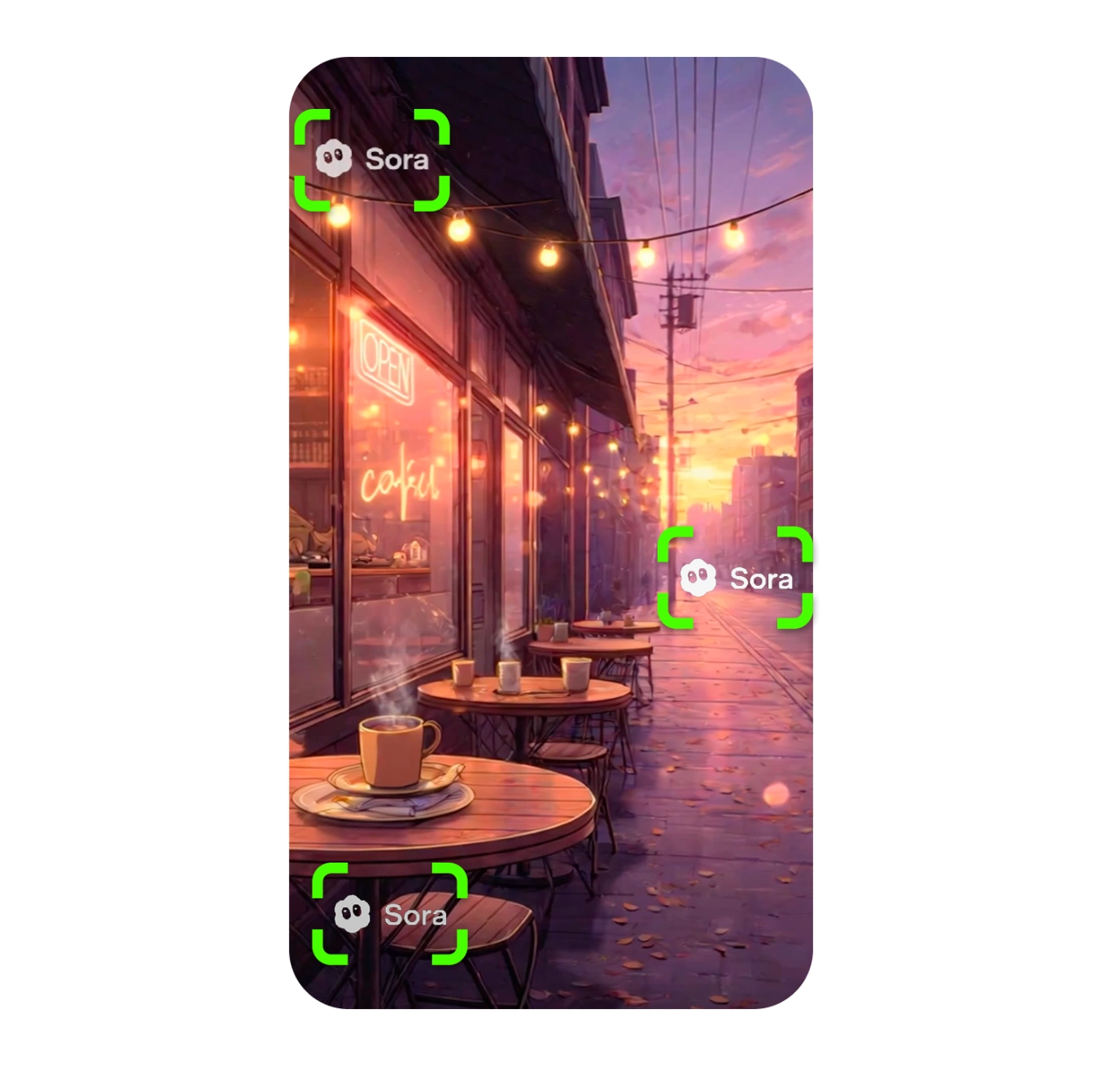
Many free video editors (CapCut, DaVinci Resolve, iMovie) let you place a blur or color block over the Veo logo. While this technically hides the watermark, the blurred patch is immediately obvious to viewers — and to ad platforms that scan for manual watermark covers.
AI reconstruction takes a fundamentally different approach. Our model analyzes the frames surrounding the Veo watermark region, tracking motion vectors and reconstructing the underlying content pixel by pixel. The result: the Veo logo disappears and is replaced by a natural-looking continuation of the scene — completely invisible to viewers and to automated content scanners.
This makes AI removal the only viable option for commercial use: paid ads, UGC campaigns, client deliverables, and social media content where a visible blur patch would undermine the video's professional quality.
Batch Remove Veo Watermarks from Multiple Videos
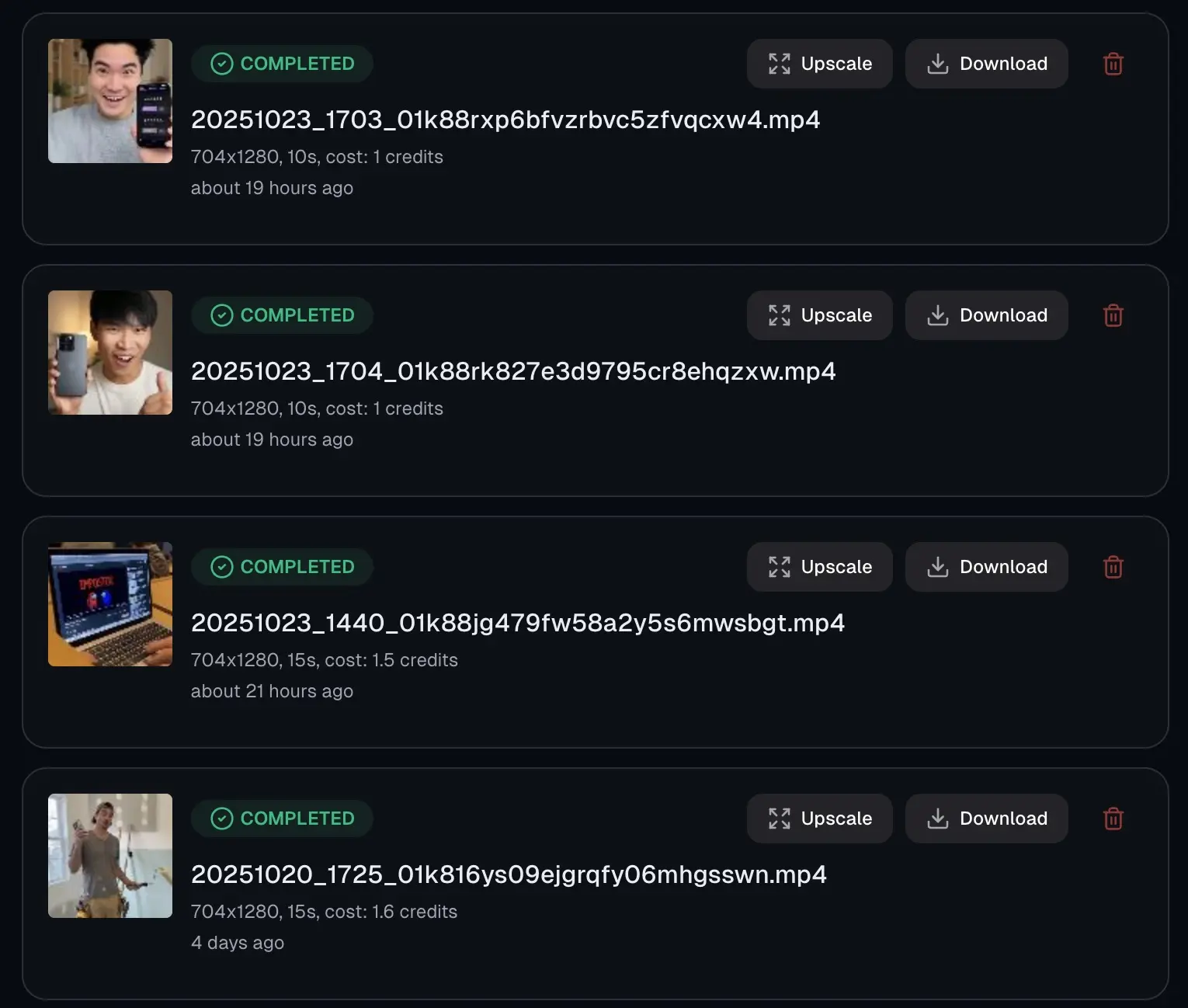
If you generate multiple Veo videos in a single Google Flow session, all of them will carry the same Veo watermark pattern. Processing them one by one is time-consuming — our batch Veo watermark remover lets you upload all your Flow videos at once and process them simultaneously.
Depending on your plan, you can process up to 30 Veo videos in a single batch task. Each video is handled independently by its own AI worker, so a batch of 10 Veo clips takes roughly the same time as processing one.
Frequently Asked Questions
Everything about removing Veo watermarks from Google Flow and Veo exports
What does the Veo watermark look like?
The Google Veo watermark appears as a small text or logo overlay — typically 'Veo' branding — that rotates around the video frame at regular intervals. On recent Veo output, the watermark often appears in the corners and sometimes mid-frame, changing position throughout the clip. It's a semi-transparent overlay designed to identify the content as AI-generated.
How do I remove the Veo watermark in Google Flow?
Videos generated in Google Flow (powered by Google's Veo models) include the Veo watermark. To remove it: export your Flow video first, then upload it to our Veo Watermark Remover at sorrywatermark.com/veo-watermark-remover. The AI automatically detects and removes the Veo branding frame by frame.
Does it work on all Google Veo watermarks?
Yes. Our AI is trained on multiple Google Veo watermark patterns. The detection model handles different placements, sizes, and opacities across generations, so the removal works regardless of which Veo output you exported.
Can I remove the Veo watermark for free?
Yes. Visit sorrywatermark.com/veo-watermark-remover for a free trial. PRO plans ($5.99/month) include best-quality results, batch processing of multiple Veo videos, and optional 4K upscaling.
How long does Veo watermark removal take?
Most Veo videos process in 1–3 minutes. Higher-resolution exports take a bit longer for long clips. Batch jobs for multiple Veo videos run in parallel.
Will removing the Veo watermark affect video quality?
No. Our tool uses AI reconstruction to rebuild the pixels underneath the Veo logo rather than blurring them. The output matches your original Veo video in resolution, frame rate, bitrate, and color space.
Is it possible to remove the Veo watermark without blur?
Yes — and this is a key advantage of AI reconstruction over free tools. Instead of placing a blur or color block over the Veo logo, our AI reconstructs the content underneath it. The result is a completely clean frame with no visible patch or artifact.
Is removing the Veo watermark legal?
You should only remove watermarks from Veo videos you generated yourself. Using this tool on videos you don't own or without permission may violate Google's terms of service and copyright law. Our tool is intended for creators who generated their own Veo content and want to use it in commercial projects.
Remove Your Veo Watermark Now
AI-powered Veo watermark removal — works on Google Flow and Veo-generated videos. No blur, no quality loss.
Remove Veo WatermarkLast updated: 7/16/2026 •✓ Supports Google Flow & Veo • ✓ No blur method • ✓ Batch processing
Related Tools
Explore our complete suite of AI video tools
Free Sora Watermark Remover
FREERemove Sora and Sora watermarks from AI videos
Sora Watermark Remover PRO
PROAdvanced AI watermark removal with best quality
AI Video Prompt Generator
Structured AI video prompts for Sora 2—styles, cinematography, templates, exports
Sora Video Generator
Generate AI videos with Sora technology
Video Watermark Remover
Remove watermarks from full videos online free
Veo Watermark Remover
Remove Google Veo logos and visible Veo watermarks
TikTok Watermark Remover Online Free
Remove TikTok logos and moving watermarks without cropping
YouTube Shorts Watermark Remover
Clean YouTube logos, Shorts marks, and channel badges
Instagram Reels Watermark Remover
Remove Reels logos, usernames, and repost overlays
Sora Watermark Remover
Dedicated remover for rotating Sora watermark patterns
Kling Video Watermark Remover
Remove Kling video logos and visible watermarks
Remove Logo from Video
Remove logos, timestamps, and text overlays from video
Remove Captions from Video
Remove burned-in captions, subtitles, and text overlays
How to Remove Watermark from Video
Free guide to remove video watermarks without blur
Remove Watermark Without Blur
AI reconstruction method explained with step-by-step tips
How to Remove Sora Watermark
Guide for Sora and Sora watermark removal
Omni Watermark Remover
Remove Omni AI video logos and watermarks
How to Remove Omni Watermark
Step-by-step guide for Omni videos
Add Watermark to Video
Overlay a logo or text watermark on any video online